
Most futures traders I hear from are on Tradovate or NinjaTrader, usually because that is what their prop firm gave them. Both platforms will hand you a spreadsheet of what you did. Neither will tell you anything about it. This is how to get that file into FreeTradeJournal and what happens to it on the way in.
Tradovate: export the Orders or Performance report
Tradovate has several reports and only two of them contain trades.
- Orders gives you every fill. This is the most detailed option and the importer pairs the fills into completed trades for you.
- Performance (sometimes shown as Trades) gives you one row per round trip with buy price, sell price and realised P&L. It also imports directly.
The Account Summary and Cash History reports do not contain trades. One is a total per day, the other is money moving in and out of the account. If you drop one of those in, the importer tells you which report it is and which one to export instead, rather than opening a column mapper that could never work.
NinjaTrader: export the Executions tab
In NinjaTrader, open the Executions tab, right-click and export. Drop the file in. Fills are paired into completed trades, including partial exits and reversals, and the commission on each fill is carried onto the trade it belongs to. The P&L you see in the journal is the P&L after commission, which is the number your prop firm cares about.
The Trade Performance export works too. Wins, losses and commissions come through as NinjaTrader shows them.
What pairing means in practice
A fill-level file is not a list of trades. If you bought 2 MNQ, added 1, then sold 3 in two pieces, that is five rows. The importer turns it into one trade with the real average entry, the real exit and the right size. Reversals are split at the point your position crosses zero, so going from long 2 to short 1 in one order becomes a closed long and a new short.
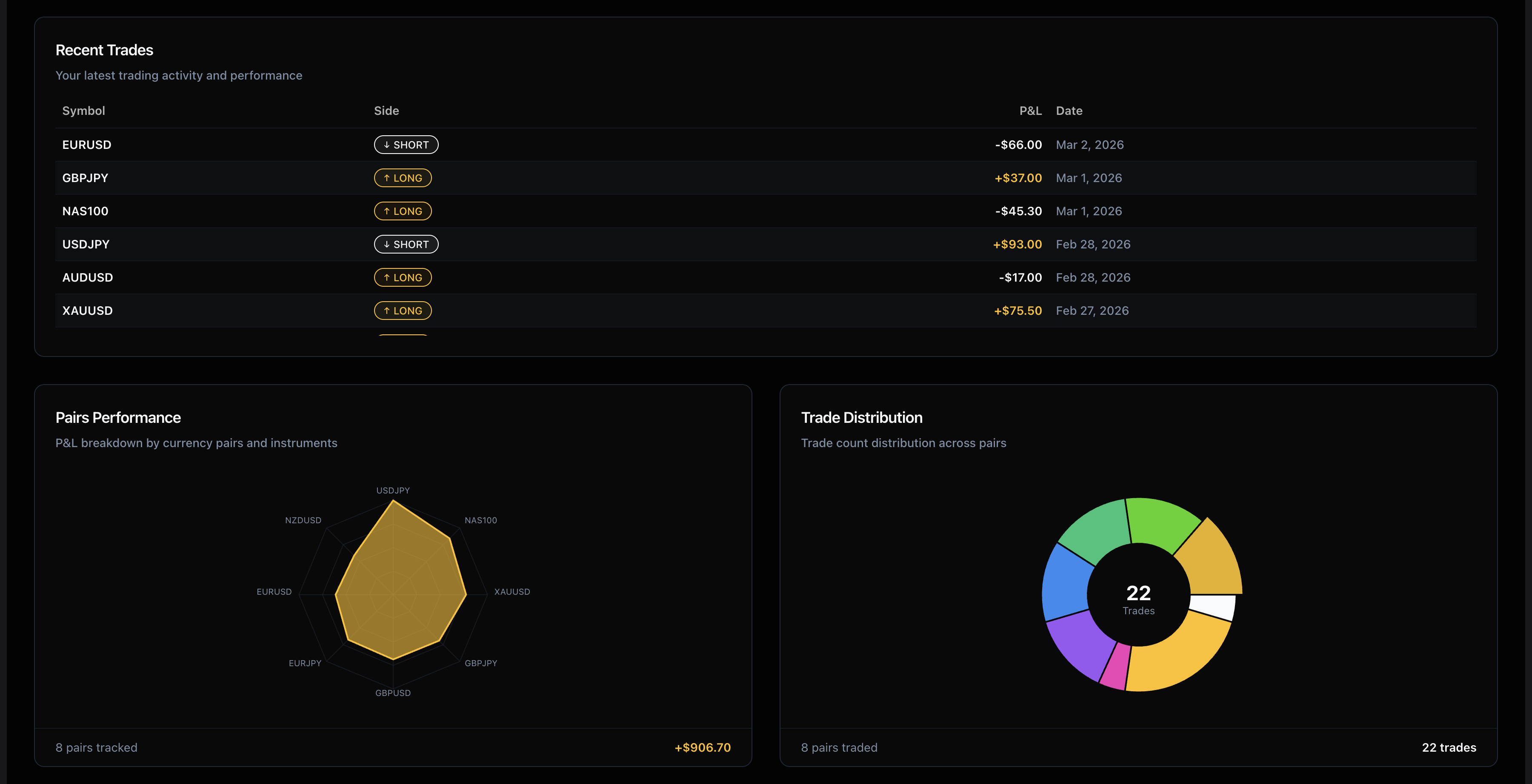
You can see the result before anything is saved. The preview shows the trades it found and the ones it could not pair.
The time zone setting that matters
Tradovate and NinjaTrader files carry the time you saw on your screen, in your own local time. So in Settings, under Accounts, leave the account's broker time zone on "Same as this device". That is the default.
Where people go wrong is picking US Central because their firm is in Chicago. That setting is only for a platform that actually displays Chicago time. If your screen shows London time and you tell the importer it is Chicago time, every trade shifts by six hours and evening trades move to the next day. The importer now catches the obvious version of this. If a setting would put trades in the future, the preview says so and stops the import. The full story is in why imported trades land on the wrong day.
After the import
Once the trades are in, the calendar shows your days, the Time of Day and Trading Sessions charts show when you actually make money, and the AI coach reads the file and gives you a first summary. Tag the trades with your setups and the tag table in Trade Insights will tell you which ones pay.
If you are in a Topstep, Apex or MyFundedFutures evaluation, add the account to PropTracker as well. It holds the daily loss limit and drawdown so you can see how much room you have before the next session.
Import your first file. The import, the trade log and the last 30 days of analytics are free.
FreeTradeJournal is the journal this post is about. Unlimited trades, broker CSV import and goal tracking on the free plan. No card required.
Start journaling freeRead next
The best free trading journals in 2026, compared honestly (including mine)